
A very common request from SharePoint users is the need to add a link within a SharePoint Document Library to another location. For example, you have a document library containing training documents. There is one training document that happens to reside in a different site / library. You don’t want to duplicate that document by adding it to your library as well, but instead simply create a link to it.
There is a very simple way of doing this that not many SharePoint users are aware of. Adding the out-of-the-box “Link to a Document” Content Type to your library allows you to easily add links to other locations from within your SharePoint Document Library.
The result is a Document Library that can contain a mix of documents and links:

To do this, first add the “Link to a Document” Content Type to the SharePoint document library you will be adding the links to:
- Navigate to the Document Libary Settings Page (Settings >> Document Library Settings)
- Set “Allow management of content types” to “Yes” (Settings >> Advanced Settings)

- Add the “Link to a Document” content type to the library
- Settings >> Add from existing site content types
- Select the “Link to a Document” Content Type from the “Document Content Types” group and add it to the Library
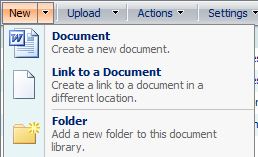
 Now in the Library you’ll notice that the “New” menu contains a new option “Link to a Document”. You can use this to add a link within your library to a document in another location:

 Liam Kerney